

Set up accounting integration
Learn how to establish connection to an entity’s accounting system.
Prerequisites
You must have a partner account in Monite.
1. Set up partner accounts on accounting platforms
Partners must set up accounts in QuickBooks Online and Xero to successfully support integrations with these accounting systems.
2. Provide accounting credentials to Monite
After creating a partner account in QuickBooks or Xero, partners must provide their secure application keys (API Key and Secret) for whichever platform they intend to integrate with Monite.
To do this, please send the credentials to dev-accounting@monite.com via a secure password manager or file sharing tool, such as BitWarden.
Partners must provide their production keys. Development and sandbox keys are not supported for these integrations.
3. Generate a Monite partner access token
To authenticate your API calls with Monite, you need to generate a partner-level token. To do this, call POST /auth/token with the following parameters:
The successful response contains the token and its validity time (in seconds):
4. Set up entities in Monite
If you have not already, create entities in Monite that represent your customers. Since the connection to an accounting system is configured on the entity level, Monite partners must have entities in Monite before proceeding further.
Entities that use accounts receivable must also create their product catalog in Monite before setting up an accounting connection.
5. Establish entity connection to an accounting system
To establish a new accounting connection that allows an entity to synchronize all its accounting data with a third-party accounting system, call POST /accounting_connections. In this request, you must pass the entity ID in the X-Monite-Entity-Id header:
The successful 201 Created response contains the information about the newly created connection:
Note down the connection_url value as you will need it on the next step.
Each entity can connect to only one accounting system at a time. The entity must be disconnected from any previous system before they can successfully establish a new connection. To disconnect an entity from an accounting system, call POST /accounting_connections/{connection_id}/disconnect endpoint. For more information, see Disconnect an accounting system.
6. Entity user authorizes their connection
Send the connection_url value obtained on the previous step to the entity representative. This URL looks like this:
The entity user must navigate to this URL in their browser. This opens an authorization page, where the entity user must select their preferred accounting system.
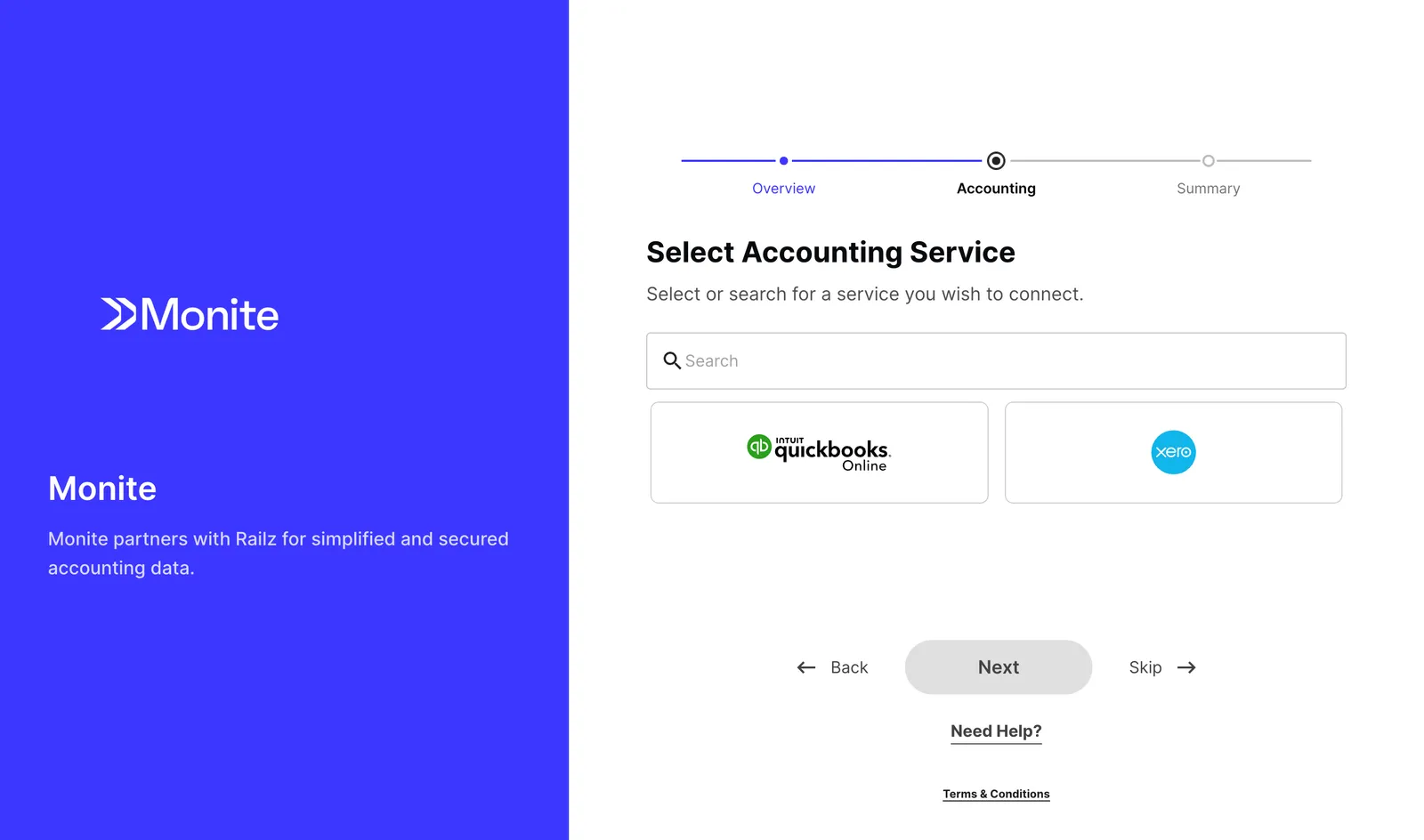
After selecting the accounting platform, the entity user must log in and authorize the partner’s developer account to access their data.
Partners can customize specific attributes on the authorization page. To do this, please contact your Monite Customer Success Manager.
Upon successful authorization, the platform field will contain the entity’s chosen accounting platform and the value of the status field in the accounting connection object will be connected. You can confirm this by calling GET /accounting_connections/{connection_id}. This endpoint returns information about the entity’s connection to an accounting system including the status of the connection and the last synchronization.
What’s next
- Assign ledger accounts to products, line items, and payment records so that they can be successfully pushed.
- Learn how invoices are pushed.
Troubleshooting
If you experience any issues and need further assistance with the integration, please feel free to contact our Support Team at any time.