

OCR Playground guide
This is a comprehensive guide to testing the Monite OCR Playground.
Overview
You can test the Monite OCR using the sandbox environment. This guide walks you through the process of generating an access token and using it to upload a document in the OCR playground.
Monite OCR Playground requires authentication via a Bearer token. Follow these steps to generate and use your token:
Retrieve your Sandbox credentials
To obtain your credentials, log in to the Partner Portal and navigate to the section where you can find your Client ID and Client Secret. Ensure you save these credentials securely. For detailed instructions on retrieving your credentials, please refer to Get your credentials.
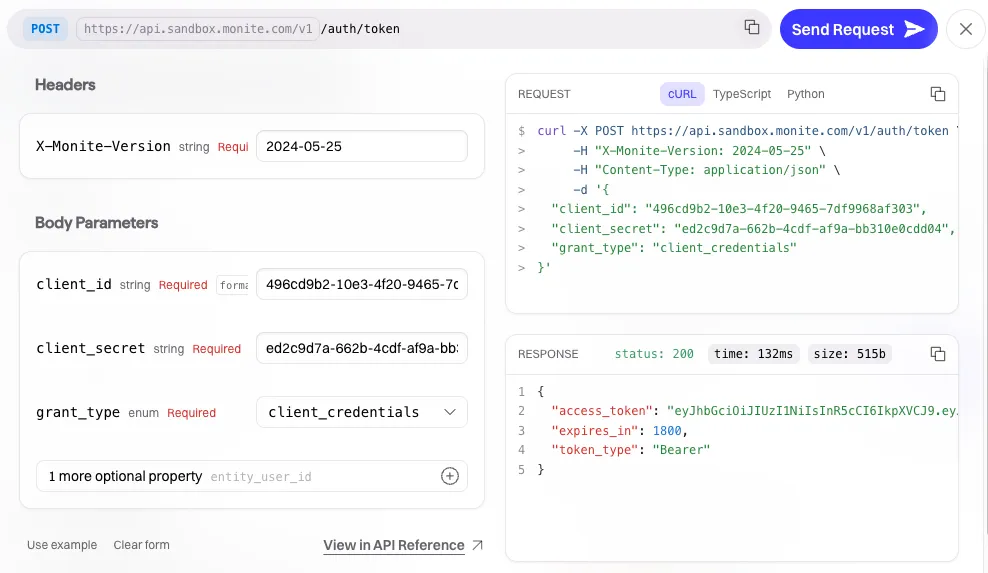
Generate an access token
- Access the
POST /auth/tokenendpoint. - Insert your Client ID and Client Secret.
- Click Send Request.
- Copy the
access_tokenfrom the response. The token expires after 24 hours.
Use the token in the OCR Playground
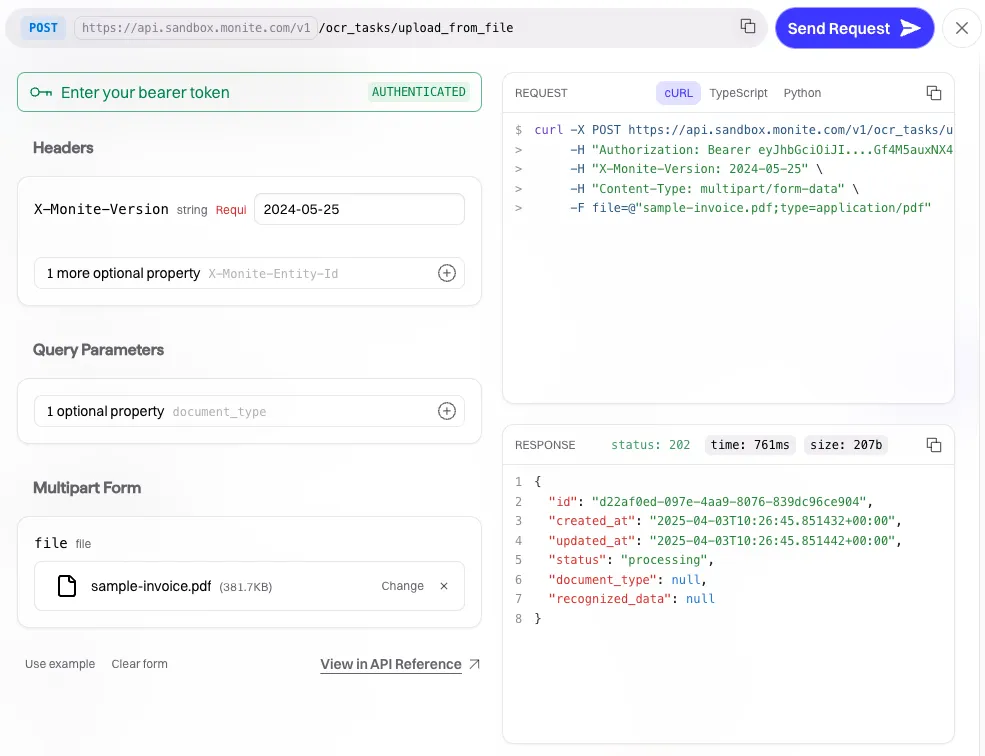
- Open the OCR Playground.
- Locate the field labeled Enter your bearer token.
- Paste the token you copied from the previous step.
- Click Send Request.
- Copy the
idfrom the response.
Retrieve the document data
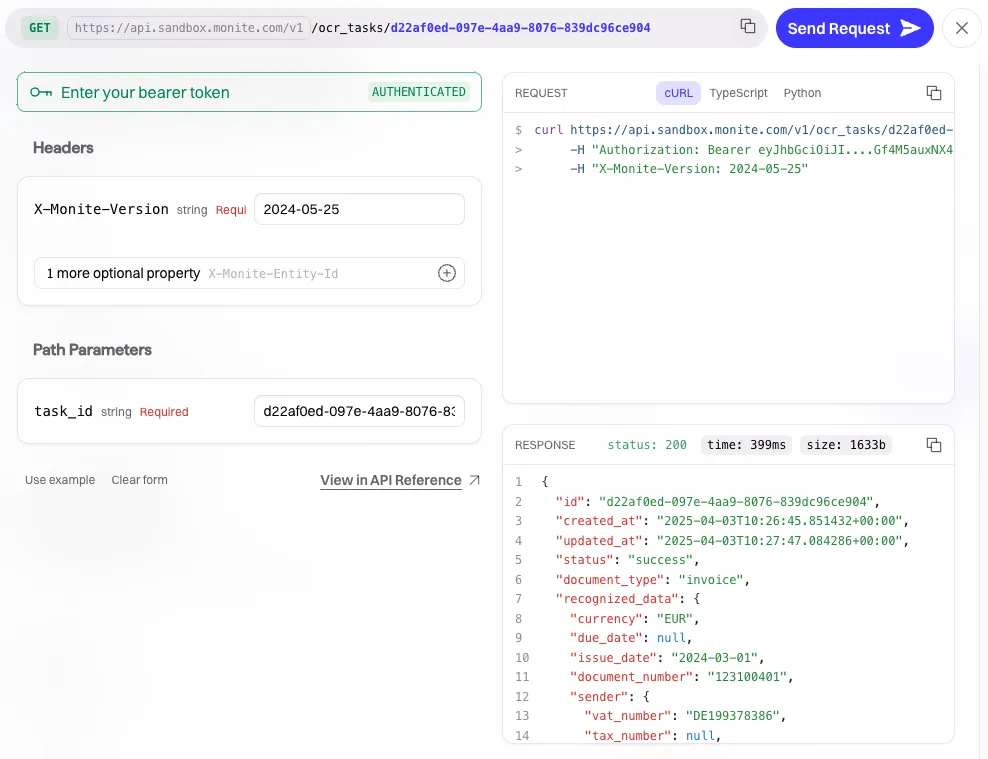
- Access the
GET /ocr_tasks/{task_id}endpoint. - Paste the
idyou copied from the previous step. - Click Send Request.
- You will find the scanned document data in the response.
You are now ready to test document uploads and process documents using Monite’s OCR capabilities.