

Payment page customization
Overview
You can customize the user interface elements of Monite-hosted payment pages to fit your brand guidelines and make the payers feel that they are on your own platform.
Logo
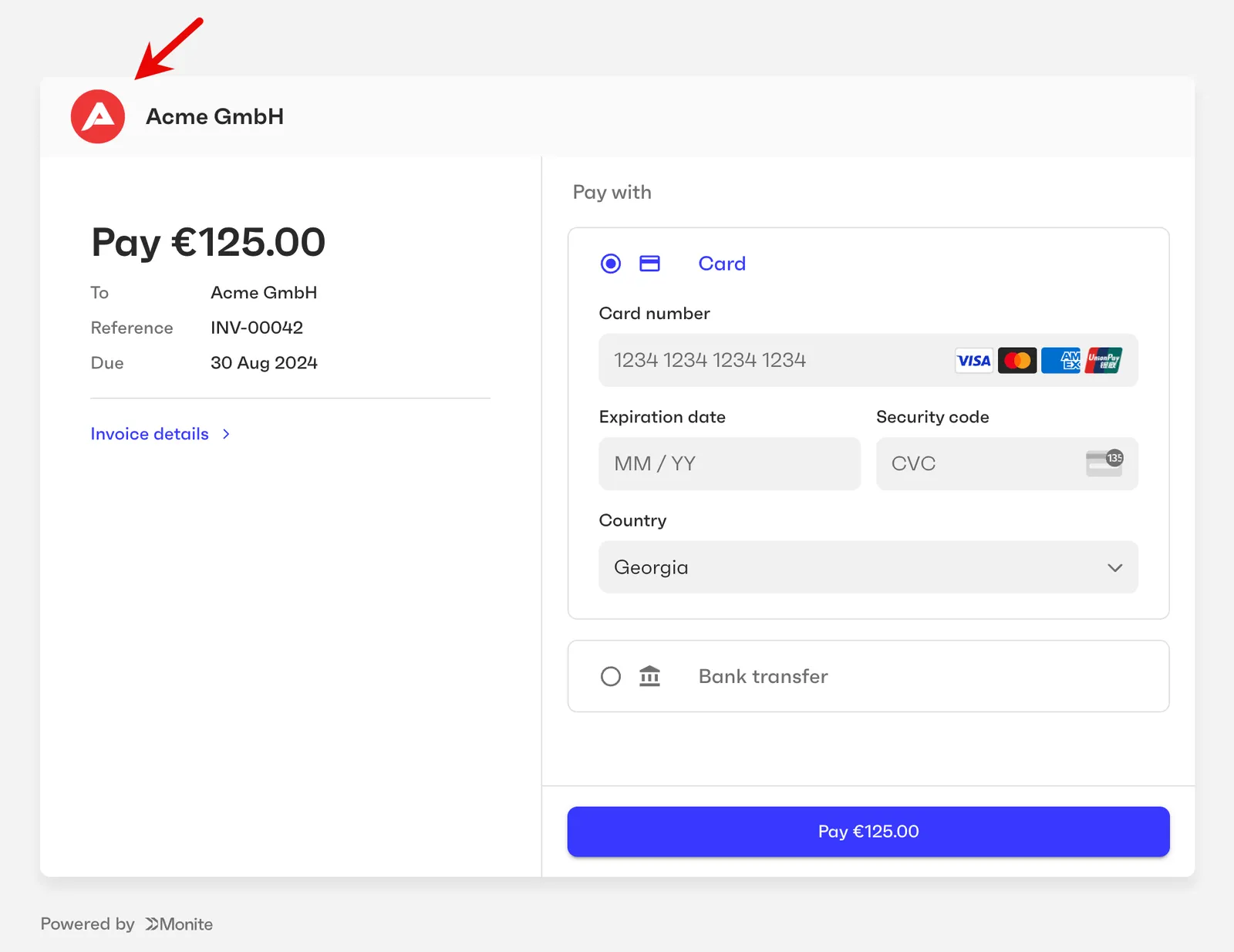
By default, the payment page displays the entity logo if available. If no logo was provided for an entity, the payment page displays your partner logo specified by the partner setting payments.. If neither logo is available, the page uses the entity name’s initials as the logo.
The payment page expects a square logo 44×44 px, with a transparent background. Larger images will be scaled down to fit.
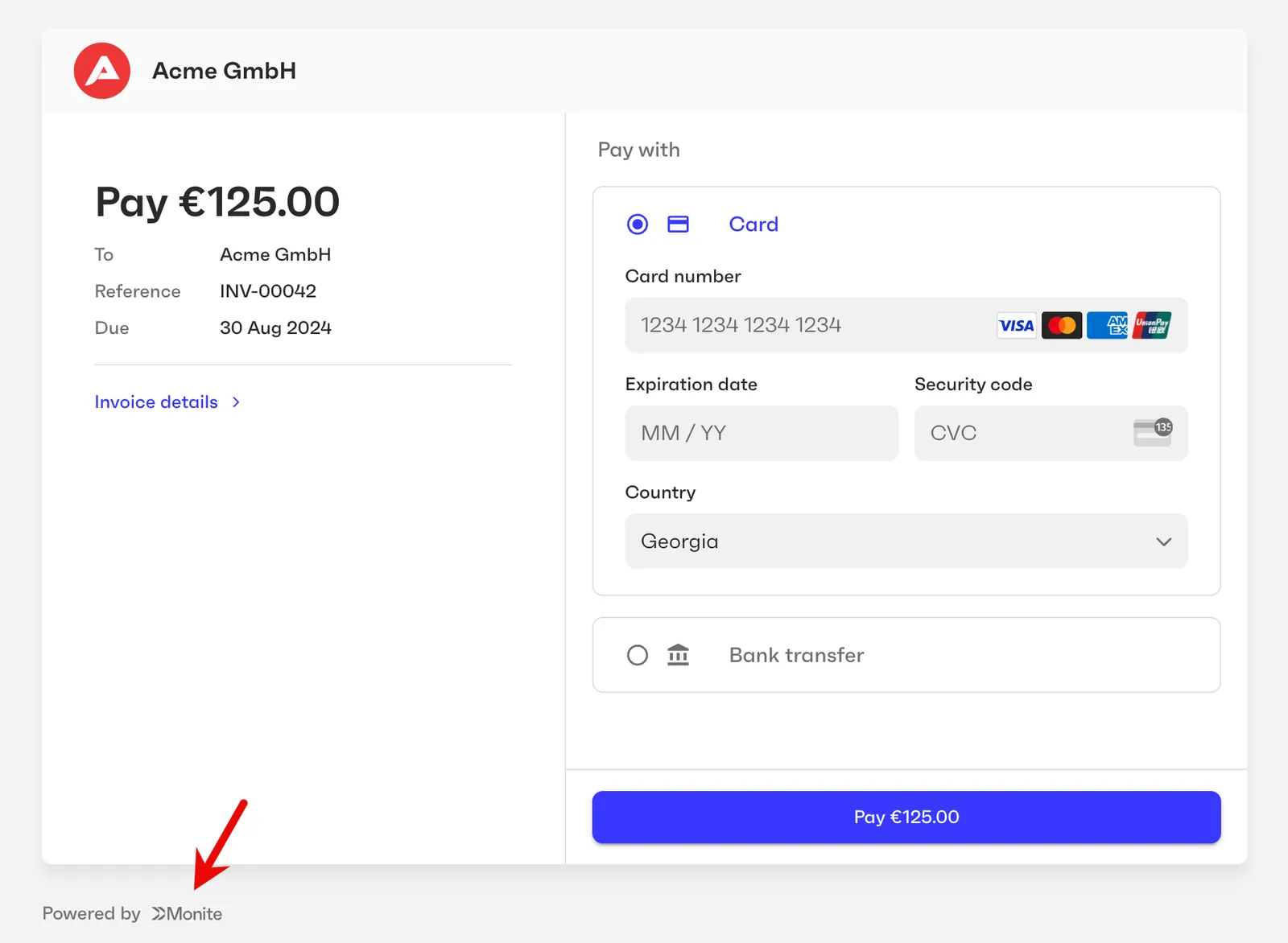
”Powered by” logo
Partners must provide their own logo to be displayed in the “Powered by” badge at the bottom of the payment page. Partners must also specify their website that the logo will link to.
Upload partner logo
To upload your logo, use the Partner Portal:
-
Log in to the Partner Portal (sandbox, EU production, or US production, depending on the environment you’re using).
-
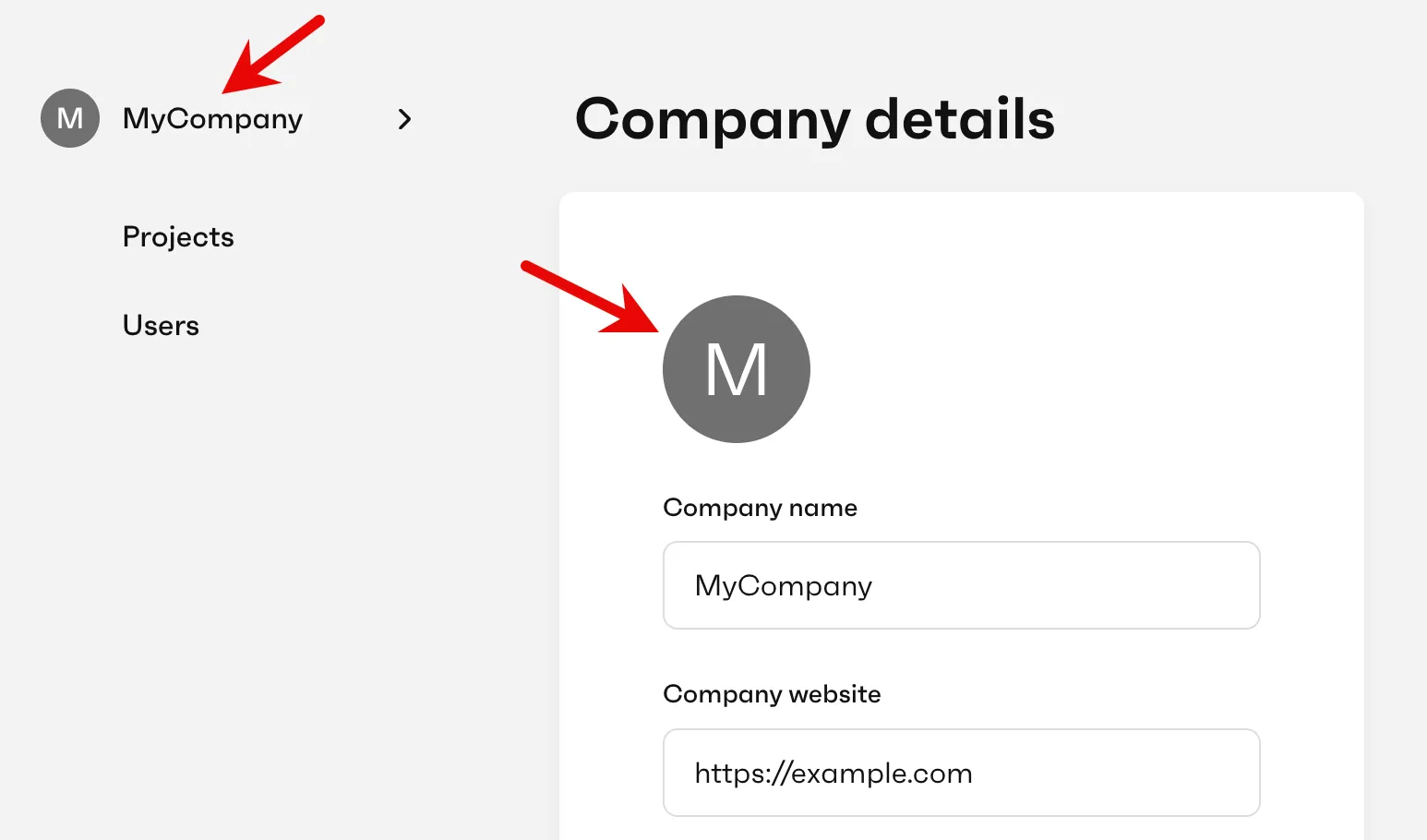
Click your company name in the navigation.
-
In the Company details section, click the logo area to upload your logo.
-
Click Save changes.
Specify partner website
Provide your website URL in the website setting in PATCH /settings. It must be an HTTPS URL.
Card color
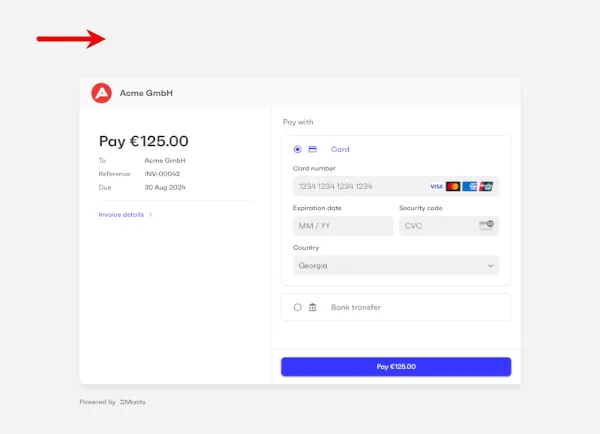
The background color of the content area within the payment page:
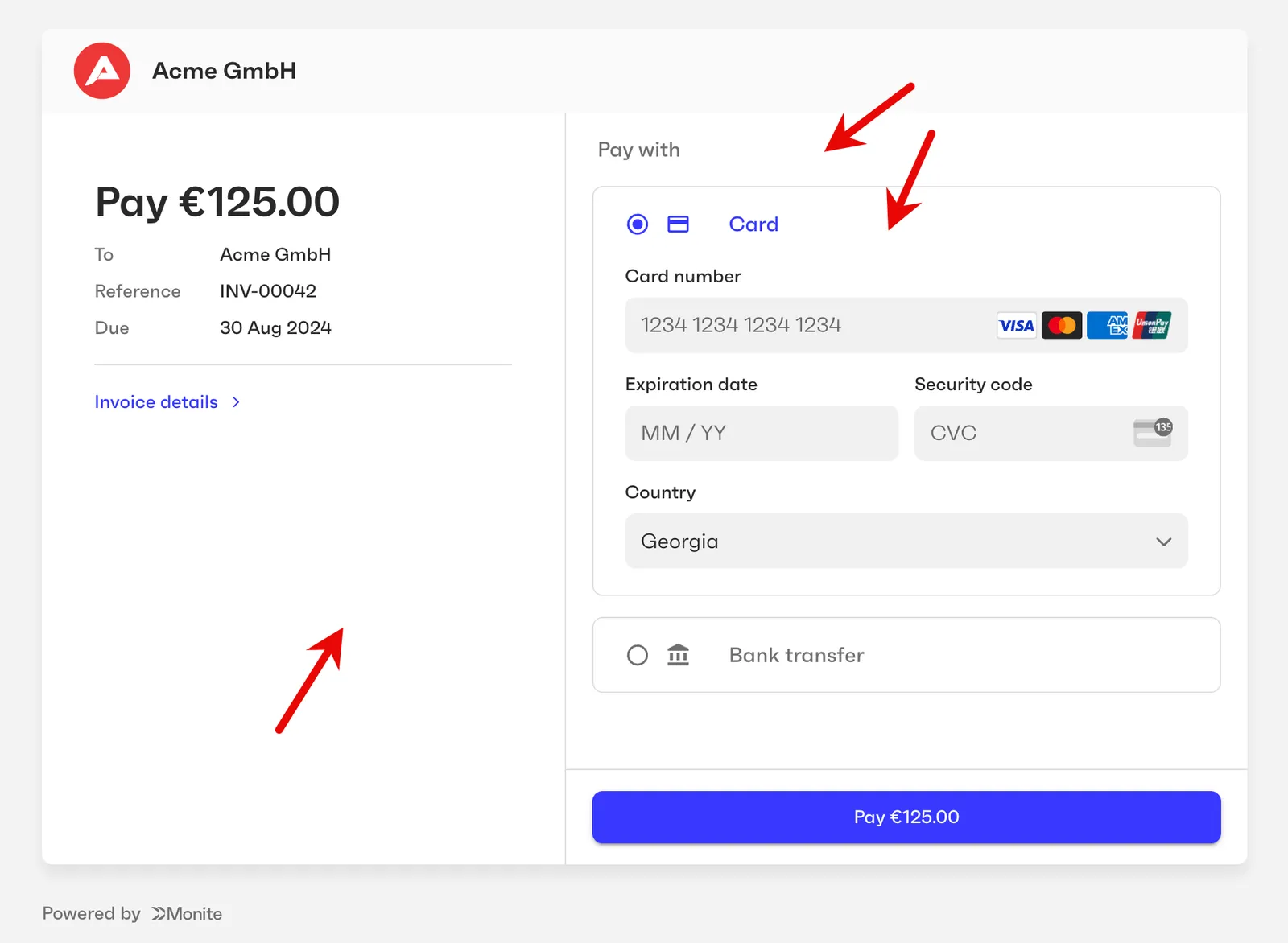
Background color
The background color of the page itself:
Button color
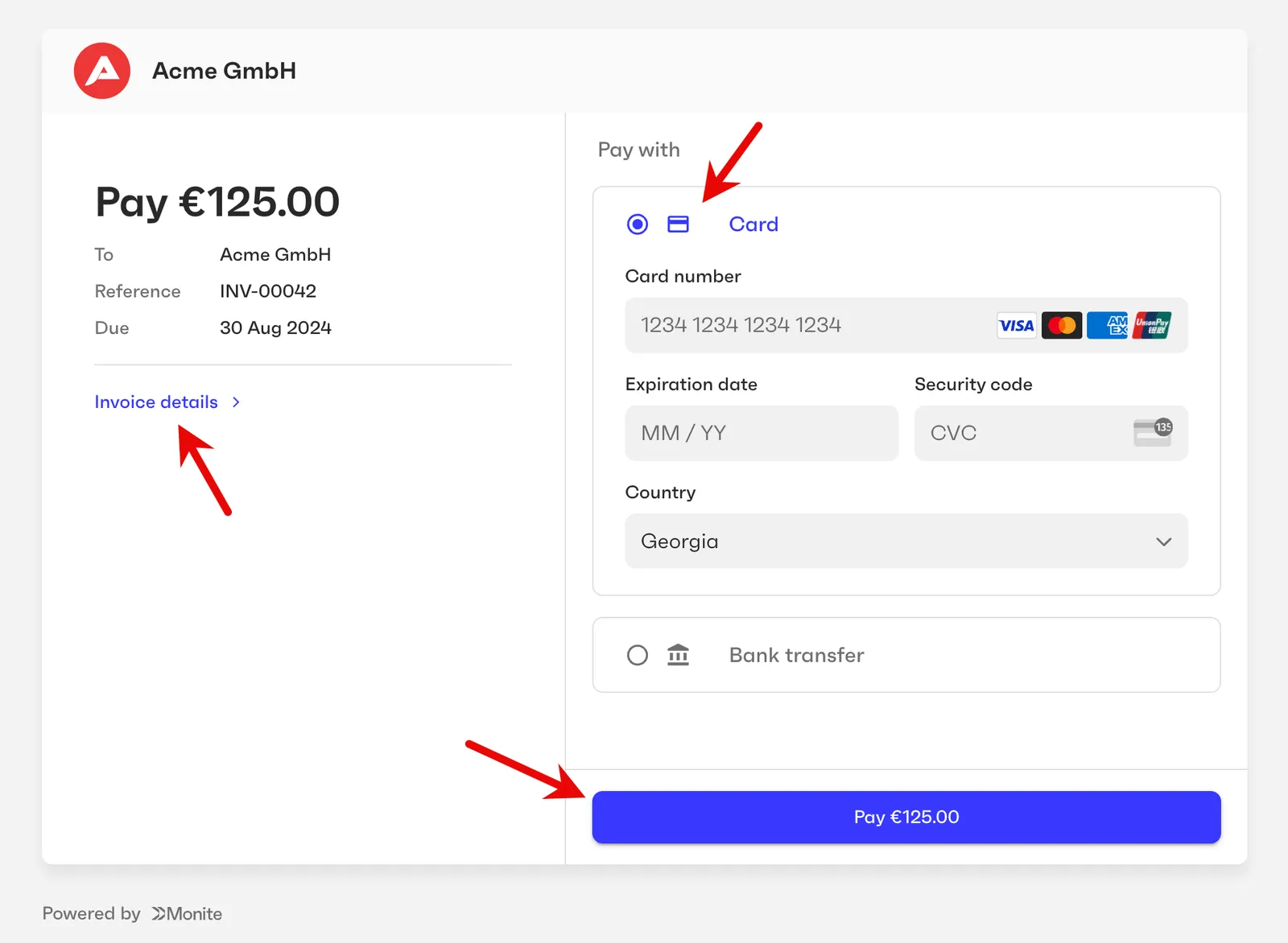
The button color refers to the background color of action buttons, as well as the text color of radio buttons (used to switch between payment methods) and text buttons (such as “Invoice details”).
Font family and color
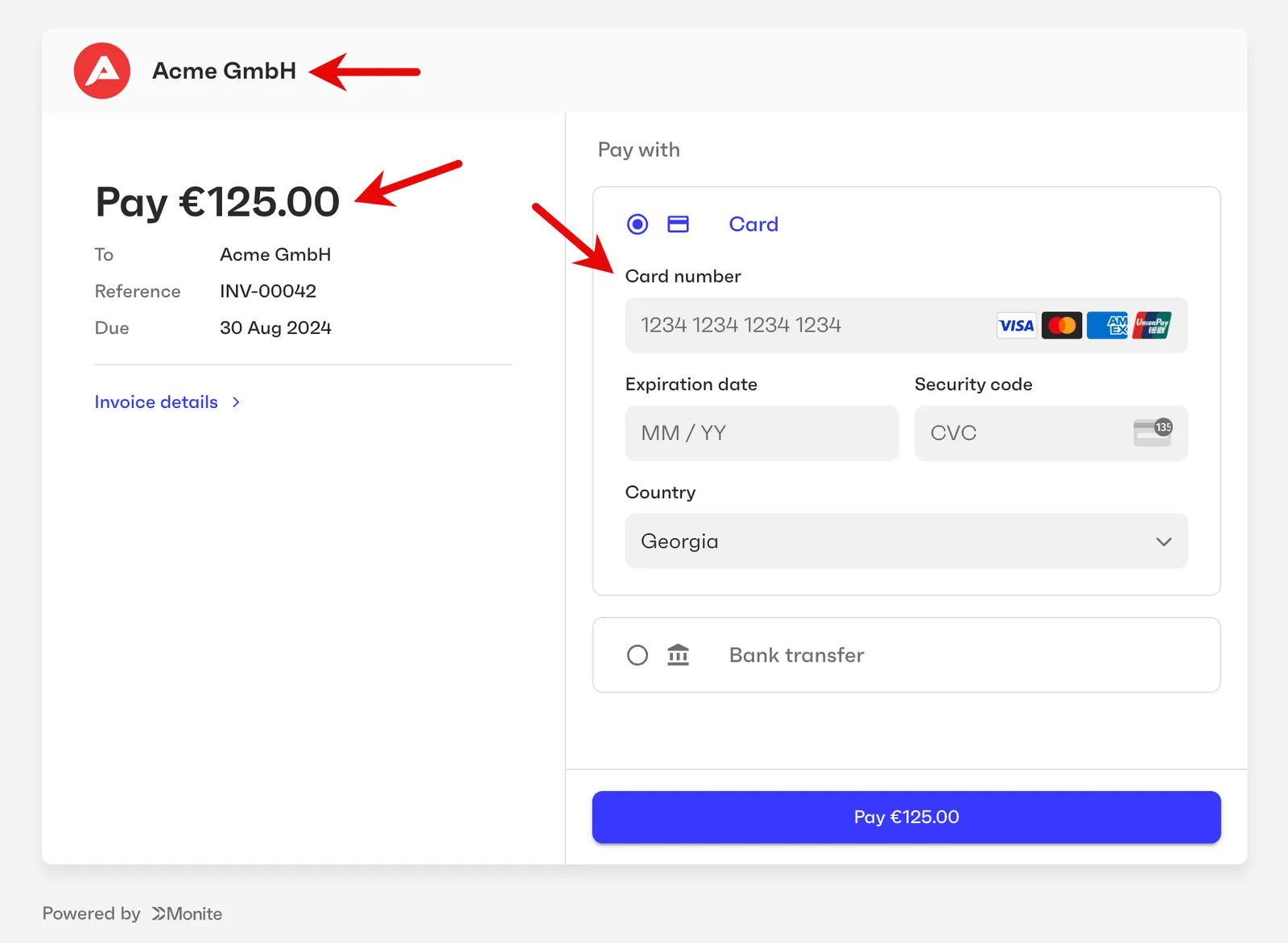
You can customize the font family and color of all text labels on the payment page:
Button border radius
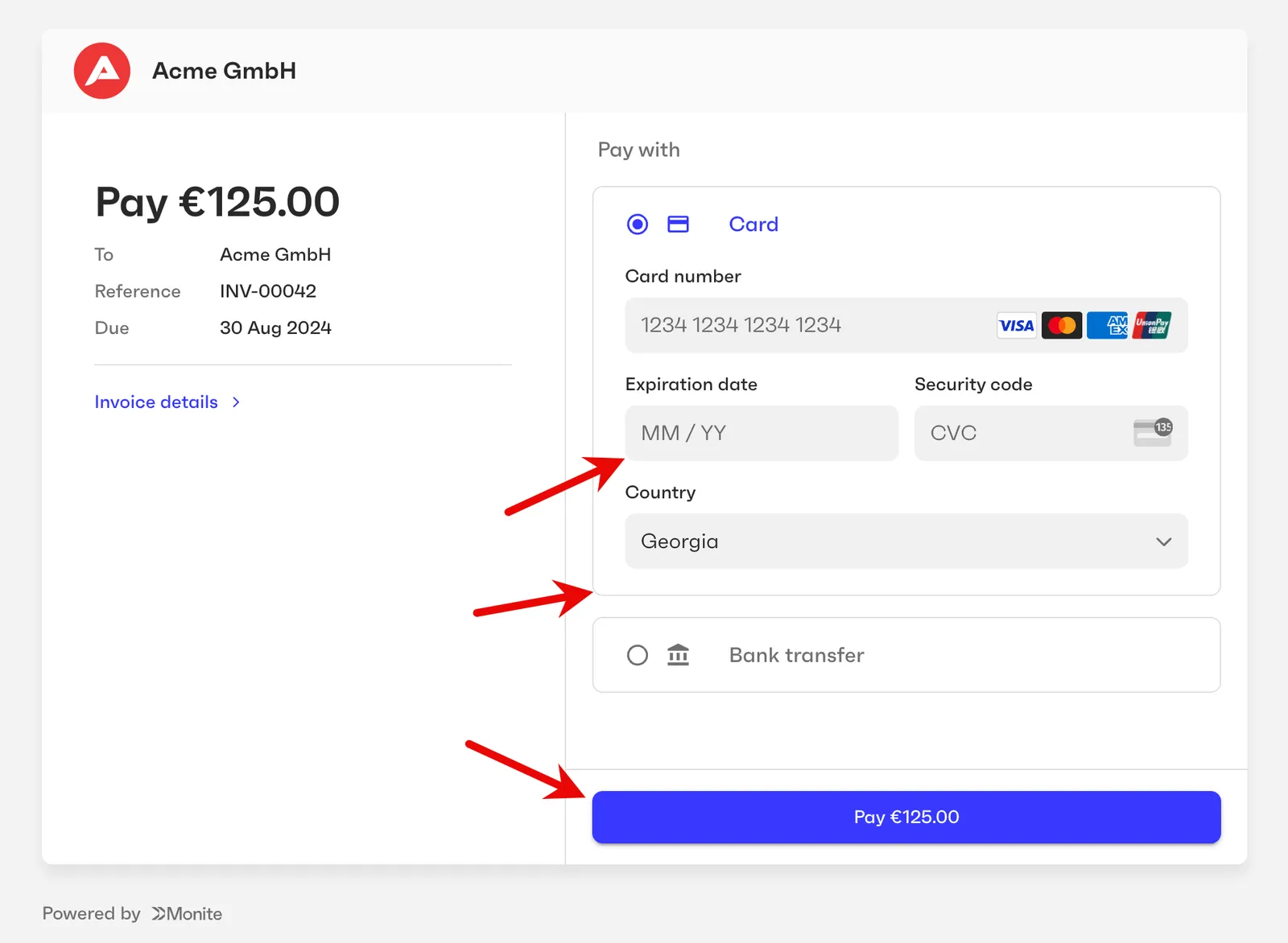
Buttons, input fields, and blocks can have rounded corners. You can define the radius of these corners:
How to customize the payments page
The payment page customization parameters are found in the partner’s settings. To modify any of the items, call PATCH /settings passing the parameters you want to update. The values should be in the CSS format:
-
The
logo_srcvalue should be an absolute URL to an external image. -
The field
font_familycan be used for CSS Web Safe fonts. In this case,font_link_hrefcan be set asnull. -
For other fonts, use the
font_link_hreffield, which is a string that contains the font resource and parameters (in our code example,https://fonts.googleapis.com/css2?family=Poppins:wght@400;500;600;700;800&display=swap). In this case, you must also specify the parameterfont_familywith the same font family.
The successful response returns all the partner settings, including the customization parameters updated. To check the current style of the payment page, call GET /settings.
Restore the default theme
To restore the default colors and styles of the payment page, call PATCH /settings and set payments.payment_page_theme to null:
You can also restore individual theming settings while keeping other settings unchanged. To do this, assign null to the specific settings you want to restore. The following example restores the default background color and button color: